Creating an API Key
To integrate MOALA APIs via SDKs or REST APIs, you must first create an API key on the MOALA portal.
This portal is accessible here: MOALA Portal
To use the SDKs presented below, you need to have an account on our back office.
This account is created once you have completed all the administrative steps outlined in the previous section Prerequisites and Integration Procedure
Below are the steps required to create an API Key on the portal.
1. Accessing the Portal
To access the portal, go to its URL: MOALA Portal in your browser.
You will land on the following page—click Login.
2. Authentication
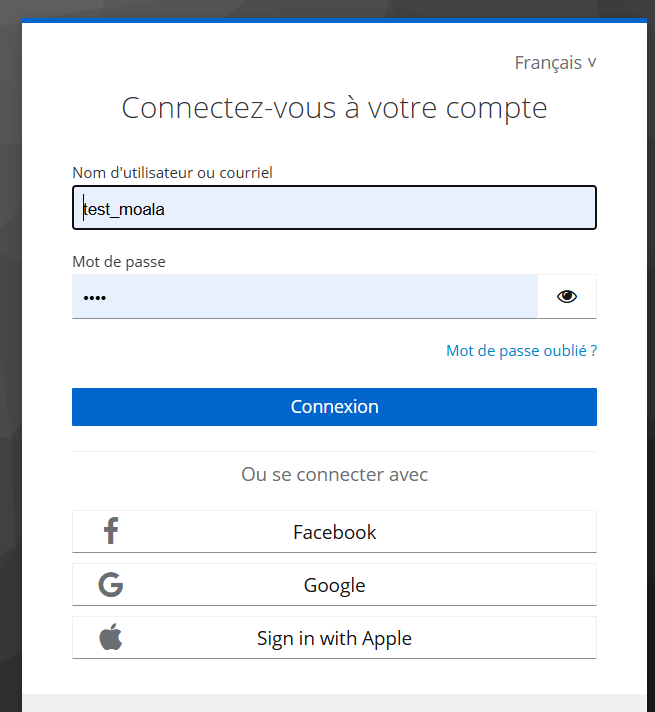
Once you've clicked on Login, you’ll be redirected to another page where you will be asked to enter your login credentials:
- Username: the username provided by MOALA’s technical support
- Password: the password accompanying the username, also provided by MOALA’s technical support
3. Creating the API Key
Once logged in successfully, you'll be directed to the following page:
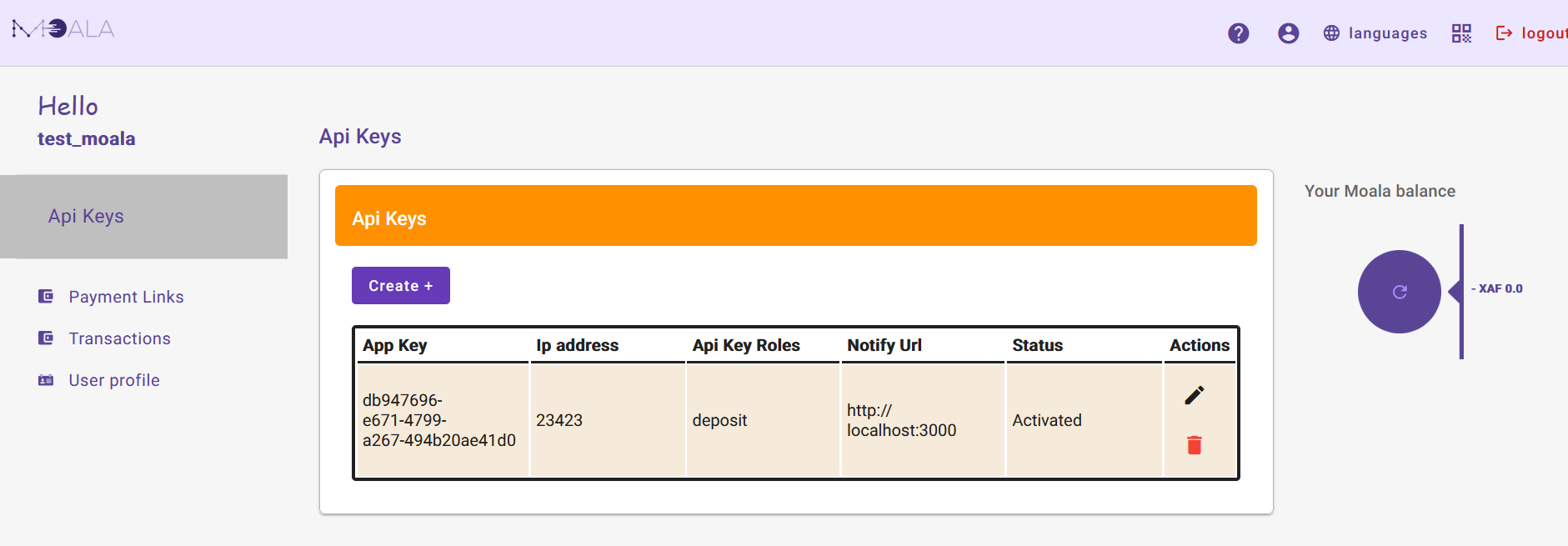
On this page, click the Create + button to open the API Key creation form.
4. Filling Out the Form
When the API Key creation form opens, fill in all required fields:
- Role: select the roles the API will have access to:
- deposit: to allow deposit operations via the API
- withdrawal: to allow withdrawals via the API
- checking: to check account balances via the API
- IP address: the IP address of the server
- Notification URL: the URL to notify the client of transaction success/failure
- Status: defines whether the API Key is active or inactive
Notification URL : this URL is a webhook from your application, which you can configure during the integration of our API or SDK.
After a request is executed on one of our APIs, Moala's backend will send a POST request to this URL in order to notify you after the execution of your request.
The POST request sent by the backend will contain information in JSON format with the following structure :
{
  "status": "RECEIVED",
  "amount": "XXXXXX",
  "partnerId": "YYYYYYYYYYYYYYYY",
  "operatorId": "ZZZZZZZZZZZZZZZ",
  "serviceCode": "PAIEMENTMARCHAND_ORANGE_CM",
  "message": null
}
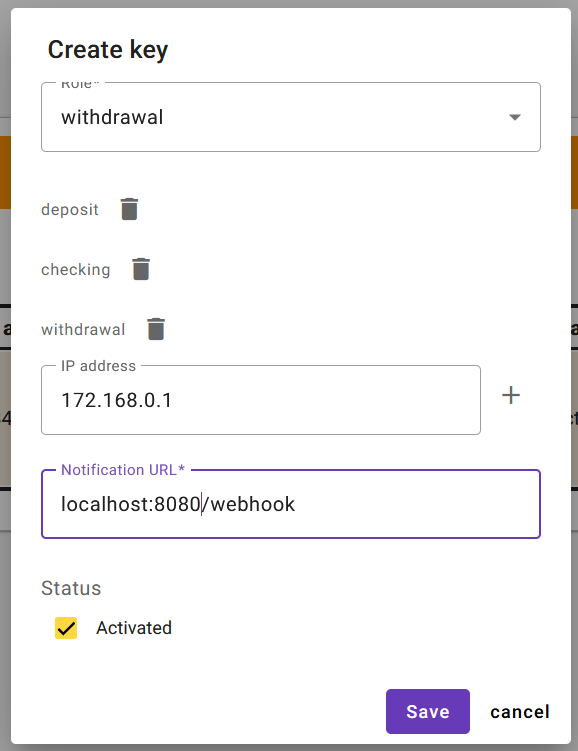
Once completed, click Save.
5. Successful Creation
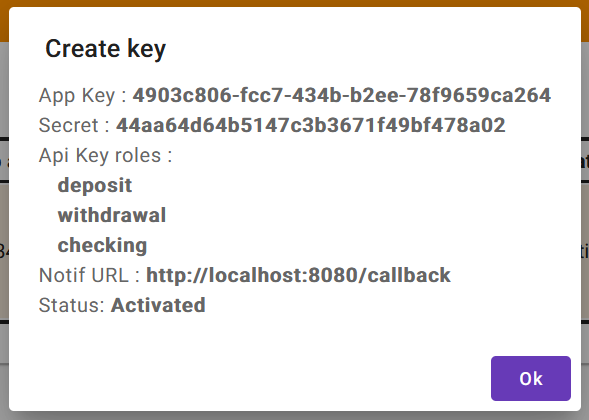
After successful API Key creation, you will see a confirmation window:
6. Listing the API Keys
You can now see that the API Key has been created and is listed in the following interface:
