Invoice Payment via Web Link
In addition to providing payment APIs and SDKs, MOALA also offers payment links that simplify how your customers can pay their invoices.
To use payment links to receive payments, simply follow the steps below:
- Log in to the Moala portal
- Generate a payment link
- Share the payment link with the customer (via WhatsApp, SMS, email, etc.)
- The customer fills in the form and completes the payment
- Check the payment status
This tutorial will guide you through using payment links—from generating the link to having it used by your customer.
1. Prerequisites
Before getting started, make sure you have the following:
- An account on the MOALA portal with permissions to create payment links
2. Generate the Payment Link
Payment links are generated from the MOALA portal.
To use the payment links described below, you must have an account on our back-office platform.
This account is created once you’ve completed all administrative procedures described in the Prerequisites and Integration Process.
You can access the MOALA portal via this link: MOALA Portal
Follow these steps to generate a payment link:
2.1. Access the Moala Portal
Visit MOALA Portal in your browser.
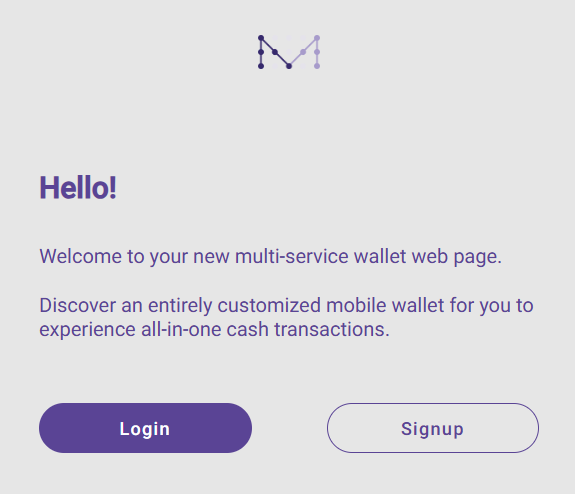
You will land on this page—click Login.
2.2. Log in
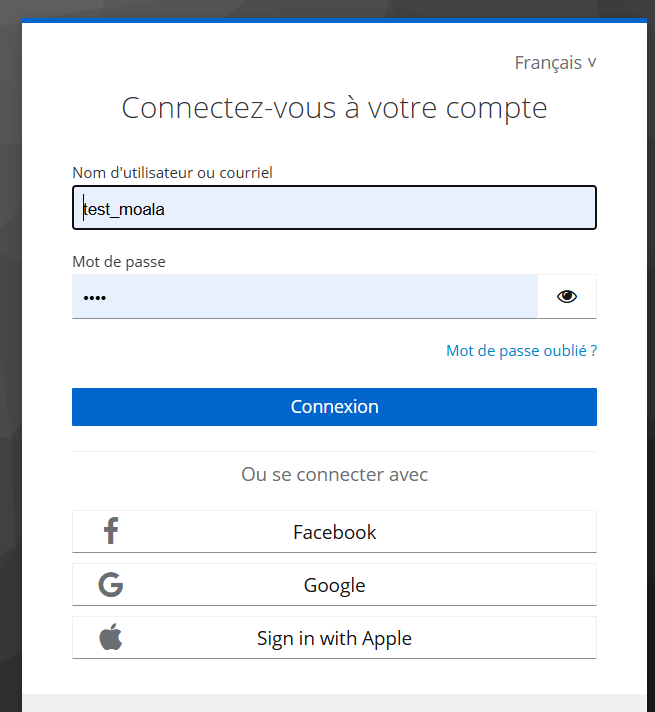
After clicking Login, you’ll be redirected to a page where you’ll need to enter your portal credentials:
- Username: provided by Moala's technical support
- Password: accompanying the username, also provided by support
2.3. Go to the Payment Links Menu
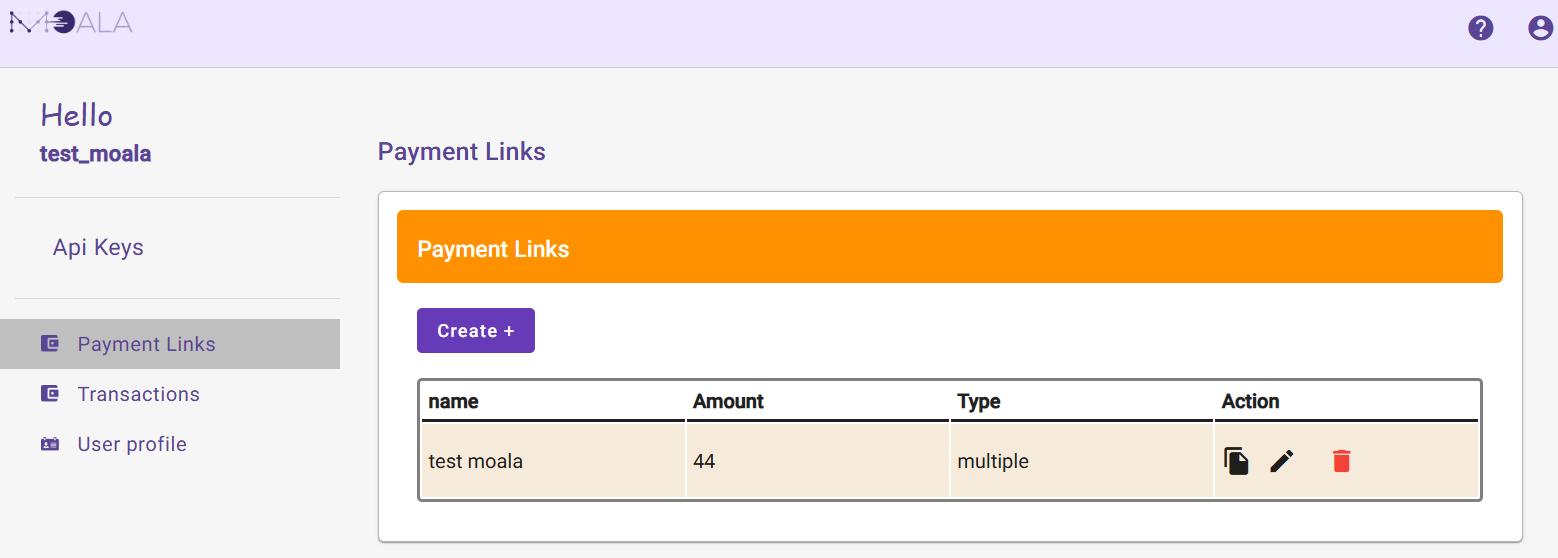
Once logged in, click on Payment Links from the left-hand menu.
You will see a list of payment links you've already created.
2.4. Fill in the Payment Link Form
On the Payment Links menu, click the Create button to create a new payment link.
Fill in the form with the following:
- Amount: the amount to be paid by the customer
- Payment Link Type: choose between one-time or multiple payments
- Simple: one-time payment
- Multiple: multiple payments
- User Support Fees: choose whether the client covers the withdrawal fees
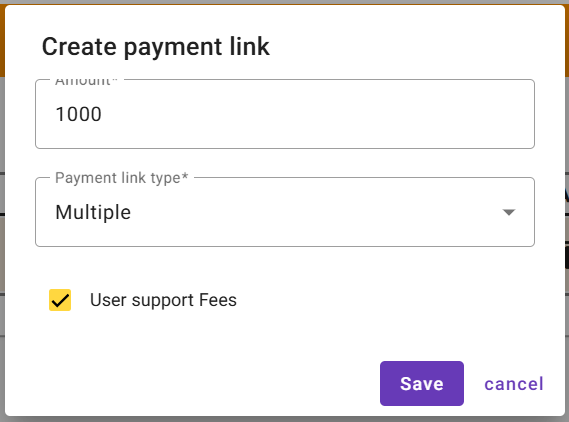
Click Validate to confirm link creation.
2.5. Confirm Payment Link Creation
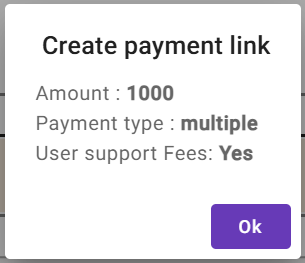
After clicking Validate, a confirmation window will appear with details about the created link.
Click OK to confirm.
2.6. View Payment Links List
Once the link is successfully created, it will appear in the list of your existing payment links.

3. Send the Payment Link to the Customer
Now that the link has been created, you can send it to your customer for payment.
3.1. Click on the Created Payment Link
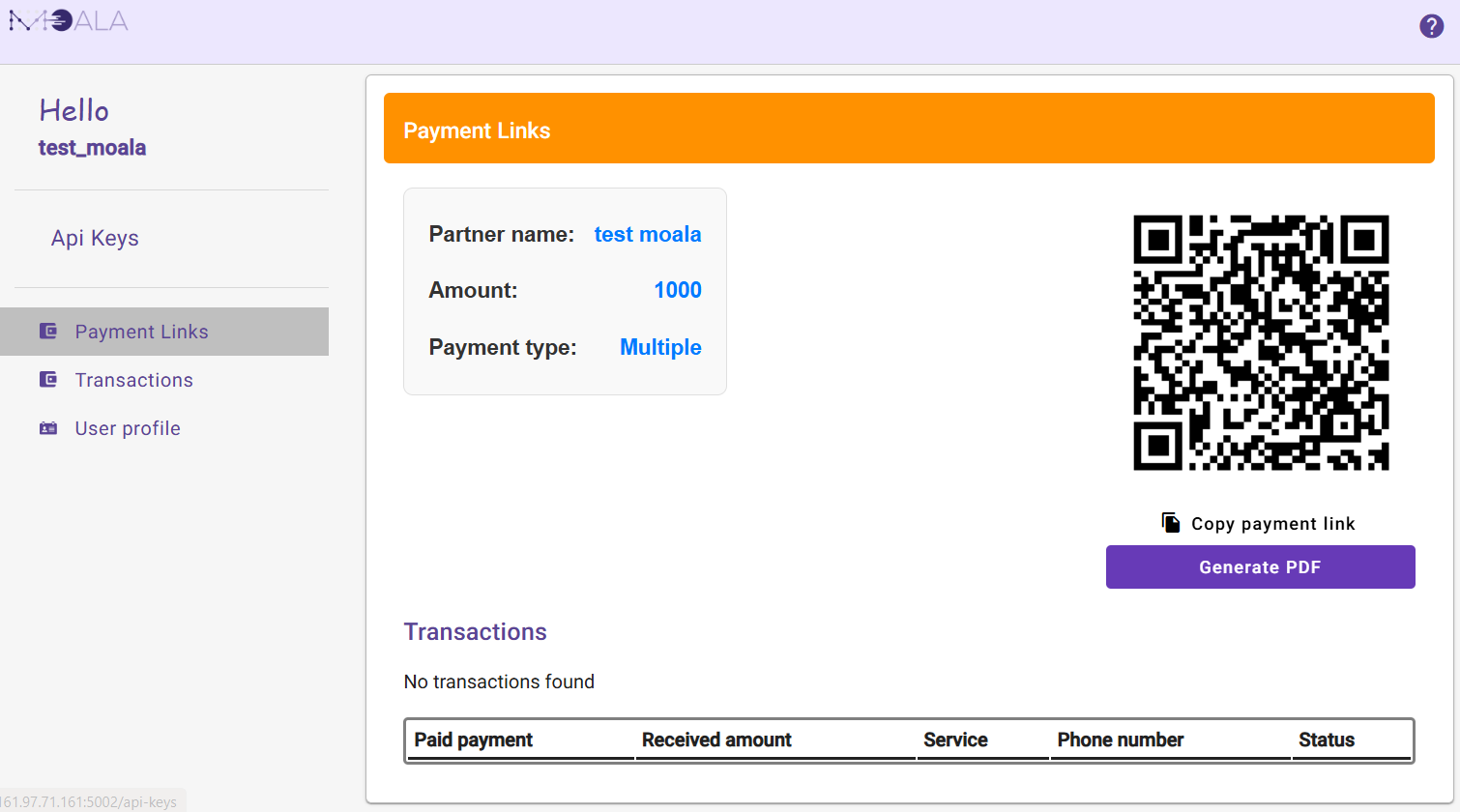
Clicking on a payment link opens a window showing its details.
3.2. Click "Copy Payment Link"
Clicking the Copy Payment Link button copies the link to your clipboard.
You can now paste and send it wherever you like.

3.3. Generate PDF
Click Generate PDF to create a file that you can send to your customer.
3.5. Send the Link to the Customer
Once the link is generated, you can send it via WhatsApp, Telegram, SMS, email, etc.
- Payment Link: http://api.moala.africa/payment-link/handle-payments/xxxxxxxxxxxxxxxxxxxxxxx
- Payment PDF: Download Payment PDF
4. Customer Fills Out the Payment Form
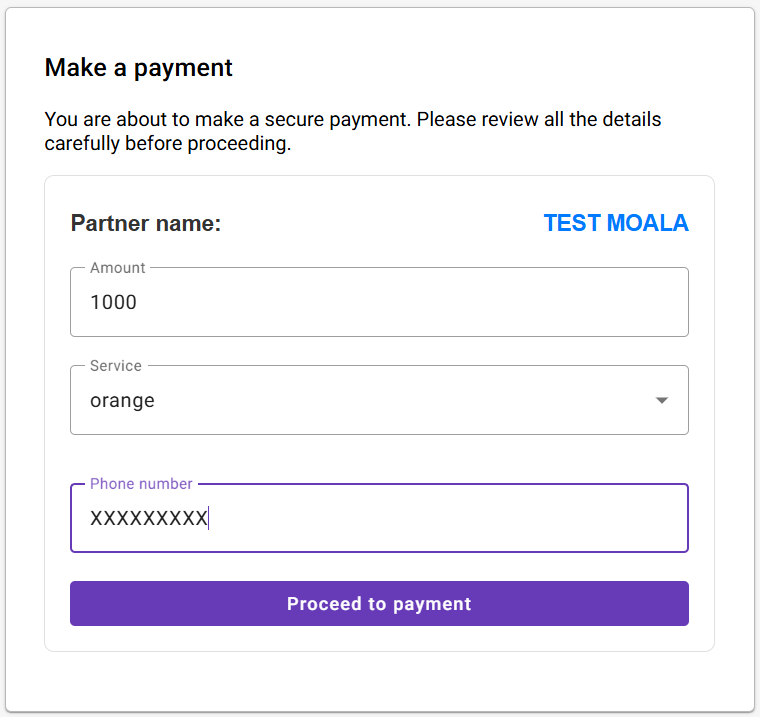
Once the customer opens the payment link in their browser, they will see a form.
4.1. Fill Out the Form
The form includes:
- Amount: the amount to be paid
- Payment Link Type: simple or multiple payments
- User Support Fees: if selected, customer covers withdrawal fees
4.2. Payment Pending
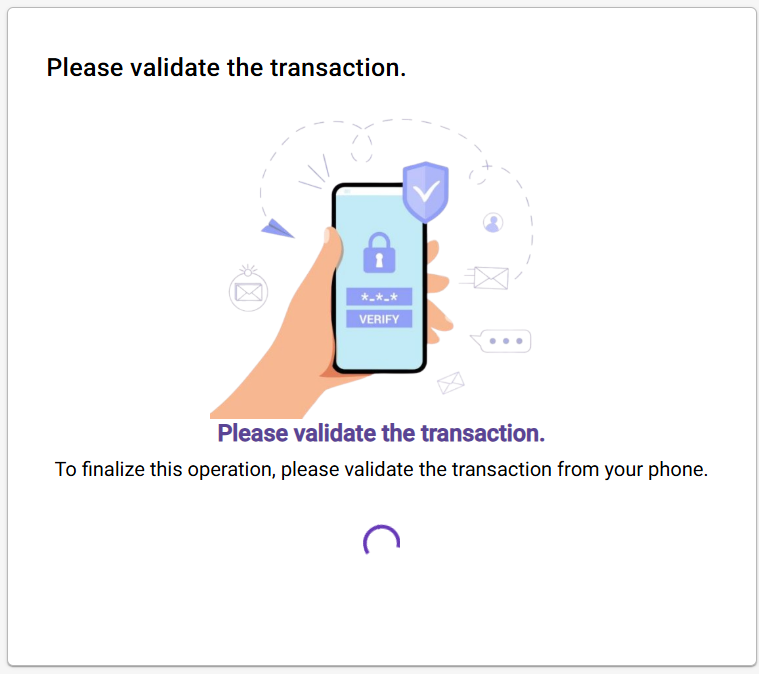
Once the customer submits the form, the payment will be marked as pending.
4.3. Payment Successful
After the payment is validated by the customer, the transaction status will change from pending to successful.
5. Conclusion
At the end of this tutorial, you should now know how to integrate and use MOALA's payment links to collect payments via a web link.